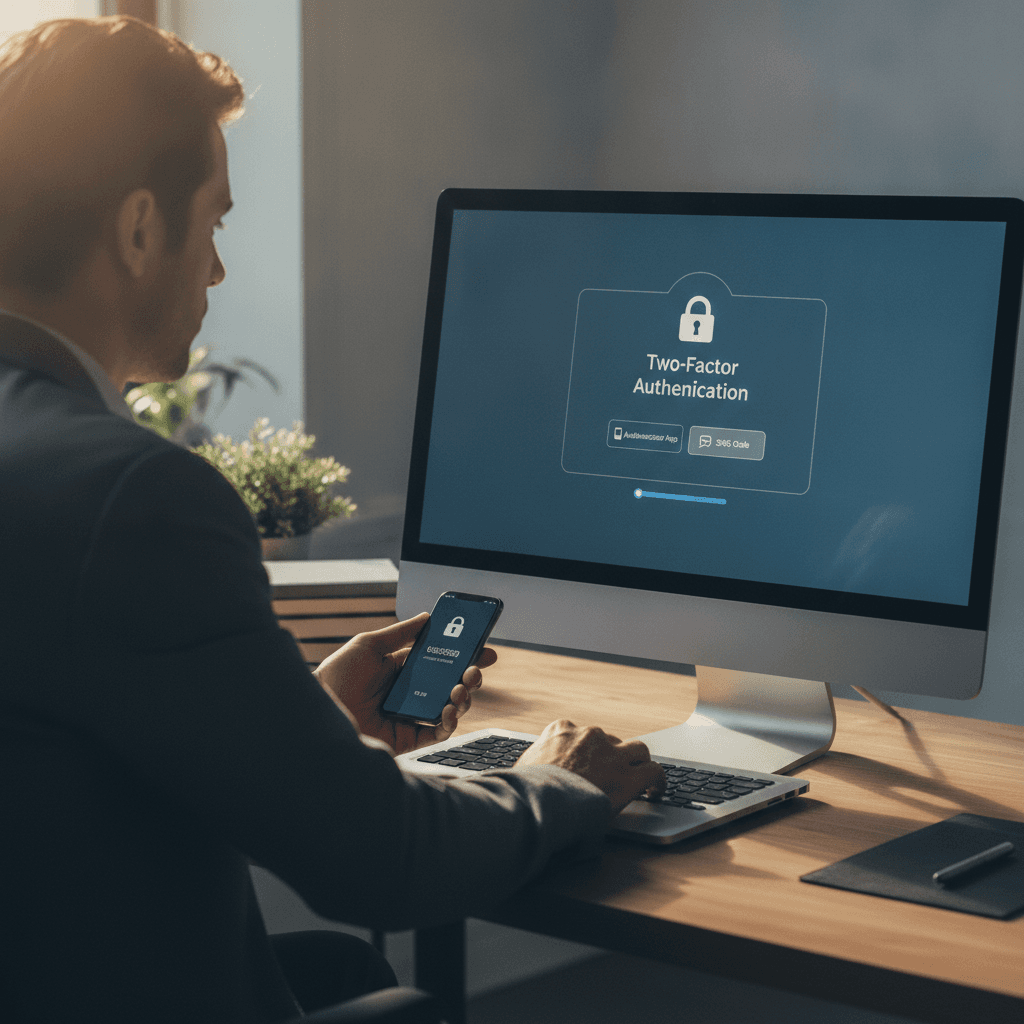

Introduction to Two-Factor Authentication
Your password alone no longer provides adequate protection for online accounts. As data breaches expose billions of credentials annually, attackers routinely attempt logins using stolen username-password combinations across multiple platforms. Two-factor authentication creates a barrier that remains effective even after password compromise, requiring a second verification element that only you can provide.
The authentication process combines something you know—your password—with something you have, such as your phone or a security key. When you log in from a new device or location, the system prompts for this second factor before granting access. This additional step blocks unauthorized users who may have obtained your password through phishing, data breaches, or other methods.
Implementing two-factor authentication addresses a fundamental security gap. Identity theft often begins with compromised account credentials, and checking your credit report regularly helps detect unauthorized activity, but preventing initial account access provides stronger protection. The verification methods range from temporary codes sent via text message to biometric scans, with varying security levels and convenience trade-offs.
Most major platforms now support two-factor authentication, and many financial institutions and email providers strongly encourage or require its use. The setup process varies by platform but follows similar principles: you enable the feature in security settings, register your authentication method, and verify it works before the system enforces it for future logins. Understanding these fundamentals prepares you to implement protection across your digital accounts systematically.
The following sections detail what two-factor authentication is, why it matters for your security posture, step-by-step activation instructions for common platforms, best practices for managing multiple accounts, and mistakes that undermine protection. Whether you're securing a single critical account or implementing organization-wide authentication policies, this guide provides the framework for effective implementation.
Learn how to turn on two factor authentication with this complete setup and management guide, ensuring your online security.
What is Two-Factor Authentication?
Two-factor authentication (2FA) is a security process that requires two different forms of identification to access an account. Instead of relying solely on a password, 2FA adds a second verification step—something you have, something you are, or something you know beyond your password. This layered approach makes it significantly harder for unauthorized users to breach your accounts, even if they've obtained your password through phishing, data breaches, or other means.
How Two-Factor Authentication Works
When you enable 2FA, the login process requires two distinct authentication factors from separate categories:
- Something you know: Your password or PIN
- Something you have: A mobile device, security key, or authentication app that generates time-sensitive codes
- Something you are: Biometric data like fingerprints, facial recognition, or retina scans
The most common implementation sends a one-time code to your phone via SMS or generates it through an authenticator app. After entering your password, you must provide this code to complete the login. Because the code expires quickly—typically within 30 to 60 seconds—an attacker who steals your password still cannot access your account without physical access to your second factor.
Types of Second Factors
Different platforms offer various second-factor options, each with distinct security profiles:
- SMS codes: Text messages containing one-time passwords sent to your registered phone number
- Authenticator apps: Software like Google Authenticator or Microsoft Authenticator that generate time-based codes offline
- Hardware security keys: Physical devices (such as YubiKey) that you insert into your computer or tap against your phone
- Biometric verification: Fingerprint scans, facial recognition, or voice authentication
- Push notifications: Approval prompts sent to a trusted device that you confirm with a tap
Each method balances convenience against security. SMS codes are widely accessible but vulnerable to SIM-swapping attacks. Authenticator apps provide stronger security without requiring cell service. Hardware keys offer the highest protection against phishing but require carrying a physical device.
The Authentication Flow
Here's what happens during a typical 2FA login:
- You enter your username and password on the login page
- The system verifies your credentials and recognizes that 2FA is enabled
- You're prompted to provide your second factor—either by entering a code, approving a push notification, or inserting a security key
- The system validates your second factor against its records
- Only after both factors are verified do you gain access to your account
This process creates a significant barrier for attackers. Even sophisticated phishing operations that capture passwords struggle to intercept time-sensitive codes or bypass hardware keys. For more context on protecting your financial accounts and personal information, see our guide on how to automate savings without thinking about it, which covers account security as part of financial automation.
Why Two-Factor Authentication Matters
Two-factor authentication stands between your accounts and unauthorized access in ways a password alone cannot. Financial institutions, email providers, and social platforms all face the same threat: someone with your password can become you. Adding a second verification step creates a barrier that password theft cannot overcome.
Identity theft remains a persistent threat to personal data security. Federal regulations recognize this risk explicitly, requiring financial institutions and creditors to establish reasonable policies and procedures for identifying possible risks to account holders. When a single compromised password can cascade across multiple accounts, two-factor authentication becomes the control that limits exposure.
The Real Cost of Account Compromise
Account takeovers do not announce themselves. Unauthorized access often begins quietly—a small transaction, a changed recovery email, a new device authorized without your knowledge. By the time you notice, the damage compounds. Two-factor authentication detects these intrusions at the entry point, before they escalate.
The regulatory framework surrounding identity theft underscores how seriously institutions must treat verification. Guidelines require creditors to identify patterns and specific forms of activity indicating possible identity theft, and to update those guidelines as threats evolve. Two-factor authentication aligns with this mandate by creating an active verification checkpoint that static passwords cannot provide.
Beyond Compliance: Practical Protection
Two-factor authentication protects more than regulatory compliance—it protects continuity. A compromised account disrupts access to services, triggers fraud investigations, and requires documentation to restore control. The effort to recover from identity theft far exceeds the minimal friction of a second authentication factor.
Consumers who experience identity theft must often provide detailed information: specific dates when fraud occurred, names of information furnishers, account numbers, and other relevant account details. This burden falls on the victim. Preventing the breach in the first place through two-factor authentication eliminates this downstream burden entirely.
The cheapest security measure is the one that stops a breach before it requires documentation, investigation, and recovery.
For those managing multiple accounts across platforms, understanding how security layers interact with your broader financial habits helps create a coherent approach to both convenience and protection. Two-factor authentication fits naturally into automated workflows without creating manual bottlenecks.
The significance of two-factor authentication lies not in its complexity but in its reliability. It transforms account security from a single point of failure—your password—into a system that requires both something you know and something you have. That distinction matters when unauthorized access attempts occur, and it matters before they do.
How to Turn On Two-Factor Authentication
Enabling two-factor authentication varies by platform, but the core process remains consistent: you'll access security settings, select your verification method, and complete a confirmation step. Most services support authenticator apps, SMS codes, or hardware keys as second factors. The setup typically takes three to five minutes per account.
Choosing Your Authentication Method
Before enabling two-factor authentication, decide which verification method works best for your situation. Authenticator apps like Google Authenticator or Microsoft Authenticator generate time-based codes that work without cellular service. SMS verification sends codes to your phone number, offering convenience but requiring network access. Hardware security keys provide the strongest protection but require carrying a physical device.
General Setup Process
Most platforms follow a similar activation sequence. Navigate to your account's security or privacy settings—often labeled "Security," "Login & Security," or "Account Security." Look for options labeled "Two-Factor Authentication," "Two-Step Verification," or "Multi-Factor Authentication."
Platform-Specific Considerations
Different services implement two-factor authentication with slight variations. Email providers often require app-specific passwords for third-party email clients once two-factor authentication is enabled. Financial institutions may limit authentication methods to their proprietary apps for regulatory compliance. Social media platforms typically offer recovery options through trusted contacts or secondary email addresses.
When setting up two-factor authentication across multiple accounts, maintain a list of which accounts use which methods. This documentation proves valuable during device upgrades or when troubleshooting access issues. Consider using a password manager that also tracks your two-factor authentication settings—many modern managers include this feature.
The strongest security setup combines an authenticator app for daily logins with securely stored backup codes for emergency access.
Verifying Your Setup
After enabling two-factor authentication, test the configuration immediately. Log out of your account completely, then log back in to confirm the verification prompt appears and your chosen method works correctly. This test identifies configuration problems while you still have active access to fix them.
Some platforms allow you to review active sessions and trusted devices after enabling two-factor authentication. Check this list to ensure no unexpected devices have access—this review catches security issues before they escalate. If you find unfamiliar sessions, revoke their access immediately and consider changing your password.
For accounts containing sensitive information, enable additional security features alongside two-factor authentication. Login alerts notify you of access attempts from new locations or devices. Session timeouts automatically log you out after periods of inactivity. Together, these layers create defense in depth that protects your accounts even if one security measure fails.
Protecting your accounts becomes easier when you automate your security practices the same way you would other important financial habits—set them up once, then let the system work for you.
Best Practices for Managing Two-Factor Authentication
Enabling two-factor authentication is only the first step—managing it effectively ensures your accounts stay secure over the long term. Strong authentication practices reduce the risk of unauthorized access, minimize recovery friction when devices change, and keep your security posture aligned with evolving threats. The guidance below reflects principles drawn from federal identity-theft protection frameworks and practical security hygiene.
Use Authenticator Apps Over SMS When Possible
Authenticator apps generate time-based codes locally on your device, eliminating the risk of SIM-swap attacks that can intercept SMS messages. Apps like Google Authenticator, Microsoft Authenticator, and Authy provide stronger security than text messages and work even when your phone has no cellular signal. Reserve SMS as a backup method rather than your primary second factor.
Store Backup Codes in a Secure Location
When you enable two-factor authentication, most platforms generate a set of one-time backup codes. Print these codes or store them in a password manager—never leave them in an unencrypted note on your desktop or in an email draft. If you lose access to your authentication device, backup codes are often the only way to regain account access without lengthy support escalations.
Review and Update Authentication Methods Regularly
Financial institutions are required to establish and maintain guidelines for identity theft protection and update them as often as necessary. Apply the same principle to your personal accounts: audit your authentication methods quarterly, remove old phone numbers, and verify that recovery email addresses are current. When you replace a device, immediately re-register your authenticator app on the new hardware and delete the old device from your account settings.
Enable Account Activity Alerts
Many platforms allow you to receive email or push notifications when a login occurs from a new device or location. Turn these alerts on—they provide an early warning if someone attempts to access your account, even if they bypass the first authentication factor. Respond immediately to any alert you don't recognize by changing your password and reviewing recent activity.
Monitor Your Credit and Financial Accounts
Two-factor authentication protects the login gate, but monitoring catches threats that slip through other vectors. Accept free credit monitoring offered by companies after a data breach—it's an opportunity to get help watching your credit report and ensuring nobody is misusing your personal information. Pair authentication hygiene with regular checks of bank statements and credit reports to detect unauthorized activity early. For more on maintaining clean credit records, see How to Dispute Credit Report Errors: A Step-by-Step Guide.
Authentication is a gate; monitoring is the guard who checks what passes through it.
Avoid Reusing Authentication Devices Across Critical Accounts
If you use a single phone number or email address as the second factor for your bank, email, and cloud storage, a compromise of that one recovery method cascades across every linked account. Where possible, diversify: use an authenticator app for high-value accounts and reserve SMS for lower-risk services. This compartmentalization limits the blast radius of any single breach.
Document Your Authentication Setup
Maintain a simple offline record of which accounts use two-factor authentication, which method each account uses, and where backup codes are stored. This inventory speeds recovery if you lose a device and helps executors or family members access critical accounts in an emergency. Store the document in a safe or locked file cabinet—never in a cloud note accessible from a compromised account.
Common Mistakes to Avoid with Two-Factor Authentication
Even with two-factor authentication enabled, poor implementation habits can leave your accounts vulnerable. Understanding where users typically stumble helps you avoid the pitfalls that weaken what should be a robust security layer.
Relying Solely on SMS for Authentication Codes
SMS-based two-factor authentication is better than nothing, but it remains the weakest method available. Phone numbers can be hijacked through SIM-swapping attacks, where an attacker convinces your carrier to transfer your number to a device they control. Once they have your number, they receive your authentication codes and can bypass your second factor entirely.
Authenticator apps and hardware keys eliminate this vulnerability because they generate codes locally on a device you physically control. If your account offers app-based or hardware authentication, choose those over SMS every time.
Storing Backup Codes in Easily Accessible Locations
Many users save backup codes in cloud note apps, email drafts, or screenshot folders—the same places an attacker would look first after compromising a primary account. If someone gains access to your email, finding backup codes stored there gives them a direct path around your two-factor authentication.
Store backup codes offline in a secure location: a password manager with its own encryption, a physical safe, or a locked file cabinet. Treat them with the same care you would give to a house key or passport.
:::
callout{type=warning}
Backup codes stored in the same account they protect create a circular vulnerability—if an attacker reaches your email, they can use codes stored there to maintain access even after you attempt recovery.
:::
Skipping Two-Factor Authentication on Secondary Accounts
Users often protect their primary email or banking login but leave secondary accounts—shopping sites, forums, or social media—unprotected. Attackers exploit these gaps, using a compromised low-priority account to reset passwords on more valuable ones or to gather personal information for social engineering attacks.
Apply two-factor authentication uniformly across every account that offers it, especially any account tied to your primary email address or financial information. A chain is only as strong as its weakest link, and attackers specifically target the weakest one.
Ignoring Account Recovery Settings After Enabling Two-Factor Authentication
Enabling two-factor authentication without reviewing recovery options creates a trap. If you lose access to your second factor and haven't configured backup methods—alternate phone numbers, trusted devices, or recovery codes—you may lock yourself out permanently.
Immediately after enabling two-factor authentication, verify that recovery settings are current: confirm backup phone numbers, download and secure backup codes, and register a secondary authentication method if the platform supports it. Many account lockouts stem from users who enabled security features without planning for device loss or replacement. Just as checking your credit report regularly prevents surprises, reviewing recovery settings prevents lockouts.
Using the Same Authentication Method Across All Accounts
When a single authenticator app or hardware key protects every account, losing that device means losing access to everything at once. Diversifying your second factors—using one app for work accounts, another for personal, or mixing apps with hardware keys—limits the damage from any single point of failure.
This approach also reduces the risk of a compromised device granting an attacker access to your entire digital life. Segmentation is a core security principle: don't put all your authentication eggs in one basket.
Failing to Update Contact Information After Phone Changes
Replacing a phone without updating account settings can sever your connection to two-factor authentication codes. If your old number is reassigned to someone else, they may receive your authentication codes, or you may simply lose access when the service sends codes to a number you no longer control.
After any phone change, immediately update the contact information on every account using SMS-based authentication, and re-register authenticator apps on the new device. This maintenance step is easy to overlook but critical to maintaining uninterrupted access.
:::
pullquote
Security tools only work when the recovery plan is as strong as the protection itself.
:::
Disabling Two-Factor Authentication for Convenience
Temporarily disabling two-factor authentication to simplify a login—during travel, device setup, or when switching phones—and then forgetting to re-enable it is a common pattern. That window of vulnerability is exactly when opportunistic attacks succeed.
If you must disable two-factor authentication temporarily, set a calendar reminder to re-enable it within 24 hours. Better yet, plan ahead: configure your new device or travel setup before your trip so you never need to lower your defenses.
Not Recognizing Phishing Attempts Targeting Two-Factor Authentication
Phishing attacks have evolved to intercept two-factor authentication codes in real time. An attacker sends you to a fake login page, you enter your password and authentication code, and they immediately use both on the real site before the code expires.
Always verify the URL before entering any credentials or authentication codes. Legitimate services will never ask you to provide a two-factor authentication code via email, text, or phone call. If a login prompt appears unexpectedly or after clicking a link, navigate to the site directly through your browser rather than following the link.
Frequently Asked Questions about Two-Factor Authentication
What happens if I lose my phone with two factor authentication enabled?
Losing your phone doesn't mean losing access to your accounts permanently. Most platforms provide backup codes during initial setup—printable strings you can store securely offline. If you saved these codes, use one to log in from a new device. If you didn't save backup codes, contact the platform's support team with proof of identity. Recovery processes vary, but expect to verify your identity through email, security questions, or government-issued identification before regaining access.
Always store backup codes in a physical location separate from your phone, such as a safe or locked drawer.
Can two factor authentication be hacked?
No security measure is completely invulnerable, but two factor authentication significantly raises the difficulty threshold for attackers. SMS-based codes face interception risks through SIM swapping attacks, where criminals convince carriers to transfer your number to their device. Authenticator apps and hardware keys offer stronger protection because they generate codes locally without relying on cellular networks.
The strongest implementations combine something you know (password) with something you physically possess (hardware key), making unauthorized access exponentially harder even if one factor is compromised.
Do I need two factor authentication on every account?
Prioritize accounts that store sensitive information or control access to other services. Email accounts deserve immediate protection—they serve as recovery mechanisms for most other platforms. Financial accounts, healthcare portals, and any service storing payment methods should also require two factor authentication. Social media and shopping accounts present lower risk but still benefit from the added layer.
Start with your email provider and financial institutions, then expand coverage to other platforms as you build the habit.
Is two factor authentication the same as multi-factor authentication?
Two factor authentication is a specific type of multi-factor authentication. Multi-factor authentication describes any system requiring two or more verification methods from separate categories: knowledge factors (passwords), possession factors (phones or keys), and inherence factors (fingerprints or facial recognition). Two factor authentication specifically requires exactly two factors.
In practice, most consumer-facing systems use two factor authentication, while enterprise environments may layer three or more factors for highly sensitive access.
What should I do if I suspect my account was accessed despite two factor authentication?
Immediately change your password from a trusted device and review recent account activity for unauthorized actions. Check which devices currently have active sessions and revoke access to any you don't recognize. Generate new backup codes and invalidate the old set. If the platform offers security notifications, enable alerts for login attempts from new locations or devices.
Document specific dates when you noticed suspicious activity and gather account numbers or other identifying information about affected services. This information proves valuable if you need to report identity theft or dispute fraudulent transactions. For accounts showing confirmed unauthorized access, contact the platform's security team and consider filing a report with relevant authorities.
How often should I update my two factor authentication settings?
Review your settings whenever you change phones, update your phone number, or notice a platform has added new authentication methods. Generate fresh backup codes annually and destroy old ones. If you use an authenticator app, verify it's backed up properly so you don't lose access during device upgrades.
Most platforms don't require routine changes to two factor authentication settings unless you experience a security incident or change contact information.
Conclusion
Two-factor authentication represents one of the most effective defenses against unauthorized account access and identity theft. By requiring a second verification step beyond your password, you create a barrier that stops the overwhelming majority of automated attacks and credential-stuffing attempts before they reach your personal information.
The setup process takes minutes, but the protection lasts as long as you keep it enabled. Whether you choose authenticator apps, hardware keys, SMS codes, or biometric verification, any second factor is better than relying on passwords alone. Start with your most sensitive accounts—email, banking, and any service that stores payment information—and expand from there.
Regular security practices matter just as much as the initial setup. Review your backup codes quarterly, update your recovery phone numbers when they change, and audit which devices have active sessions. These small maintenance tasks ensure that two-factor authentication continues protecting you without creating friction when you need legitimate access. For additional ways to protect your financial accounts and personal information, see our guide on how to dispute credit report errors to address unauthorized activity quickly.
The effort you invest in enabling two-factor authentication today pays dividends every time it blocks an unauthorized login attempt you never see. Take the first step now: pick one critical account, enable two-factor authentication, and save your backup codes in a secure location. Your future self will thank you.
Related reading
Discord 2FA Management: How to Disable Two-Factor Authentication