
Introduction
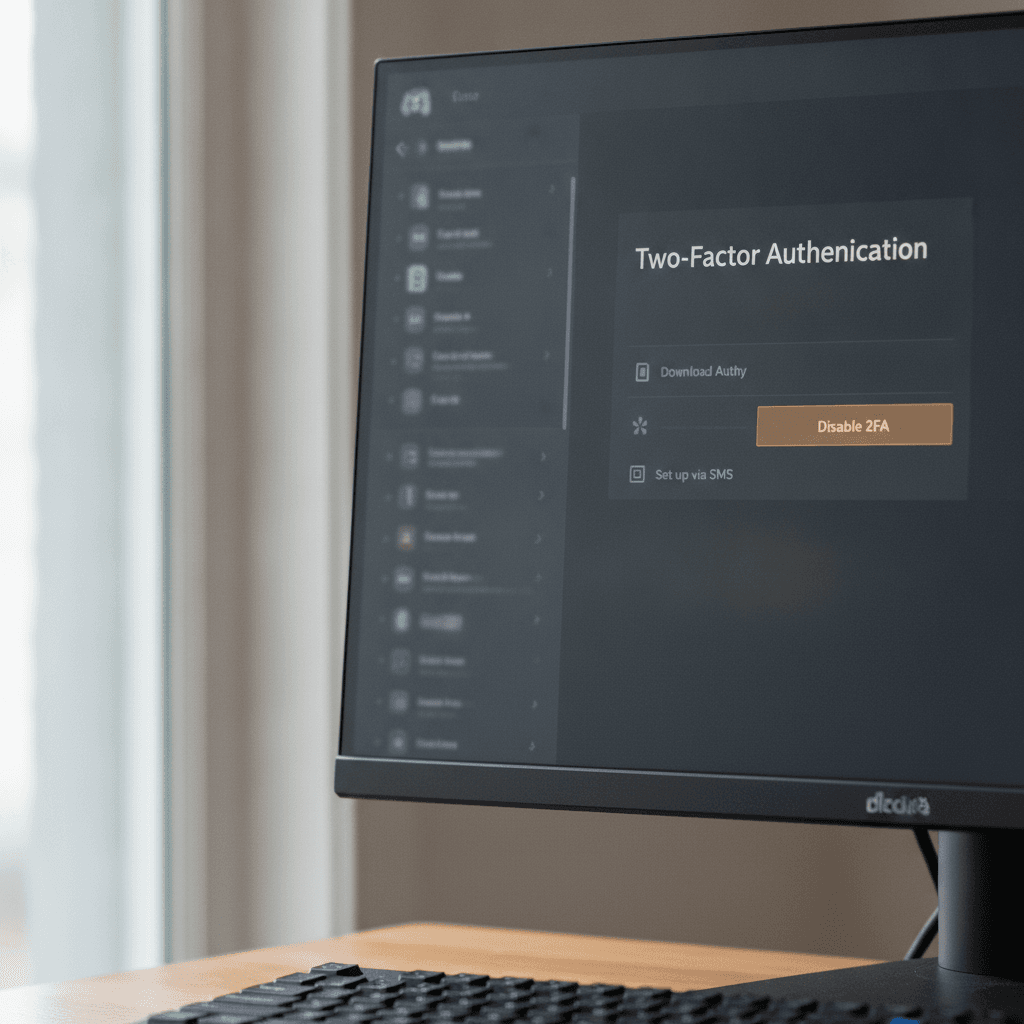
Discord 2FA Management gives you control over the security layer that protects your account from unauthorized access. Two-factor authentication (2FA), also called multi-factor authentication, requires you to verify your identity through multiple methods before accessing your account—typically your password plus a code from an authenticator app or backup codes.
While enabling 2FA strengthens your account security significantly, there are legitimate situations where you may need to disable it temporarily or permanently. You might be switching to a different authentication method, troubleshooting access issues, or adjusting your security setup after losing access to your authenticator device. Whatever your reason, understanding the proper process for Discord 2FA Management ensures you maintain account control without compromising security unnecessarily.
This guide walks you through the complete process of managing your Discord 2FA settings, with particular focus on safely disabling two-factor authentication when necessary. You'll learn the exact steps required, common challenges you might encounter, and best practices for maintaining account security throughout the process. Much like managing your financial security through practices such as subscription audits that save money, managing your digital security requires intentional decisions about what protections serve your current needs.
Before proceeding with any changes to your authentication settings, ensure you have access to your current 2FA method and your account password. Without these, you'll need to go through Discord's account recovery process instead.
Problem Statement
Two-factor authentication (2FA) on Discord adds a critical security layer, but there are legitimate scenarios where users need to disable it temporarily or permanently. Understanding when and why this becomes necessary helps you make informed decisions about your account security.
Common Reasons Users Disable Discord 2FA
The most frequent trigger is lost access to the authenticator app. When you switch phones, factory reset your device, or uninstall your authentication app without backing up codes, you're locked out of the second verification step. Discord requires both your password and the six-digit code from your authenticator—lose one, and you lose account access.
Another common scenario involves server ownership requirements. Discord mandates 2FA for server owners managing communities with elevated moderation settings. If you're transferring ownership or stepping down from administrative roles, you may need to adjust your 2FA settings to complete the handoff smoothly.
Some users also disable 2FA when consolidating accounts or troubleshooting persistent login issues across multiple devices. While managing subscription services often involves reviewing security settings, Discord's 2FA sits at the intersection of access convenience and protection—a balance that shifts based on your current needs.
The Security Trade-Off
When you disable two-factor authentication, you're trading robust account protection for easier access. Discord's security model assumes that even if someone obtains your password, they still can't log in without the time-based code from your authenticator. Remove that second factor, and your account's security depends entirely on password strength and uniqueness.
This trade-off becomes particularly risky if you reuse passwords across platforms or use predictable patterns. The temporary convenience of skipping the authenticator code creates a permanent vulnerability window until you re-enable 2FA with proper backup measures in place.
Challenges Users Face
The primary challenge isn't the technical process of disabling 2FA—it's doing so without permanent account lockout. Discord's recovery process requires you to verify your identity through the registered email and, critically, provide a valid 2FA code or backup code. If you've lost access to both your authenticator app and your backup codes, you're facing a support ticket process that can take days to resolve.
Another obstacle emerges for server owners: Discord won't let you disable 2FA while you own servers with 2FA-required moderation settings enabled. You must either transfer ownership first or adjust the server's security requirements—a catch-22 that surprises many administrators during urgent access situations.
Users also underestimate the importance of SMS backup authentication. While enabling SMS as a fallback adds complexity during initial setup, it provides a critical safety net when your primary authenticator becomes unavailable. The evidence shows that having this backup method configured prevents the majority of self-inflicted lockout scenarios.
The cheapest security measure is the one you configure before you need it—backup codes and SMS authentication cost nothing but save hours of recovery time.
Understanding these challenges before you attempt to disable 2FA ensures you maintain account access throughout the process and can make an informed choice about whether the security trade-off aligns with your current risk tolerance.
Solution Steps for Disabling 2FA on Discord
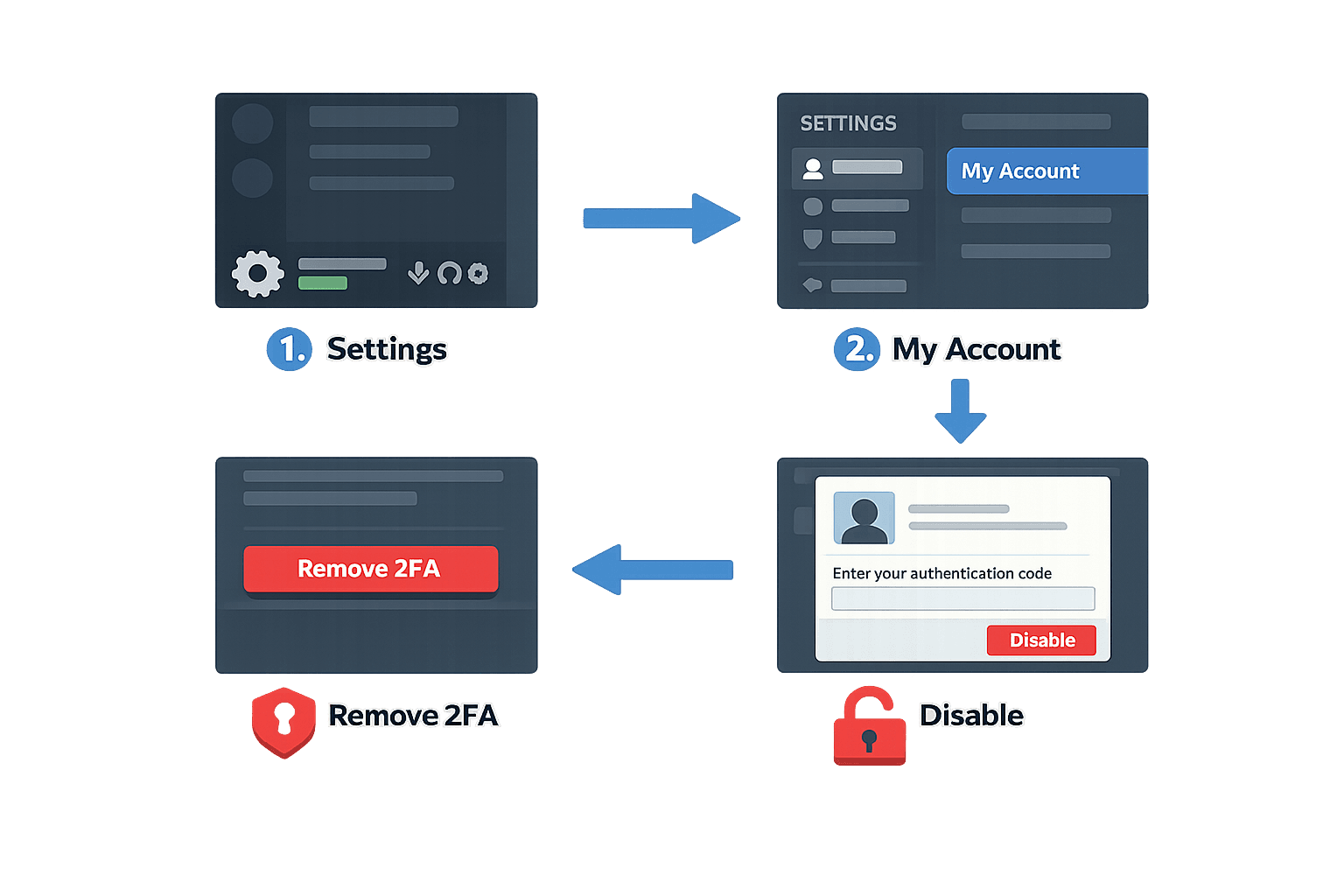
Disabling two-factor authentication on Discord requires access to either your authenticator app or your backup codes. The process is straightforward once you have the necessary credentials, but the steps differ slightly depending on which method you're using.
Disabling 2FA with Your Authenticator App
If you still have access to your authenticator app, follow these steps to disable Discord 2FA Management:
Once you complete these steps, Discord will disable two-factor authentication immediately. You'll receive a confirmation message, and your account will revert to password-only authentication.
Using Backup Codes to Disable Discord 2FA Management
If you've lost access to your authenticator app but have your backup codes, you can still disable 2FA. According to Discord Support, if you have access to your account's password, you can disable 2FA using the View Backup Codes option in User Settings.
To use this method:
- Follow steps 1–4 from the authenticator method above
- When prompted for an authentication code, click "Use backup code instead"
- Enter one of your eight-digit backup codes
- Confirm the removal when prompted
You can also check to see if you have these codes saved on your computer by searching for a file named discord_backup_codes.txt. Discord automatically downloads this file when you first enable 2FA, though many users overlook it.
What to Do If You've Lost Both Methods
If you don't have access to your authenticator app or backup codes, you'll need to contact Discord Support directly. They'll verify your identity through alternative means before helping you regain account access. This process can take several days, so keeping backup codes in a secure location is essential.
For those looking to strengthen overall account security practices beyond Discord, understanding how to dispute credit report errors can help you maintain control over your digital identity across platforms.
Tips and Tricks for Managing Discord 2FA
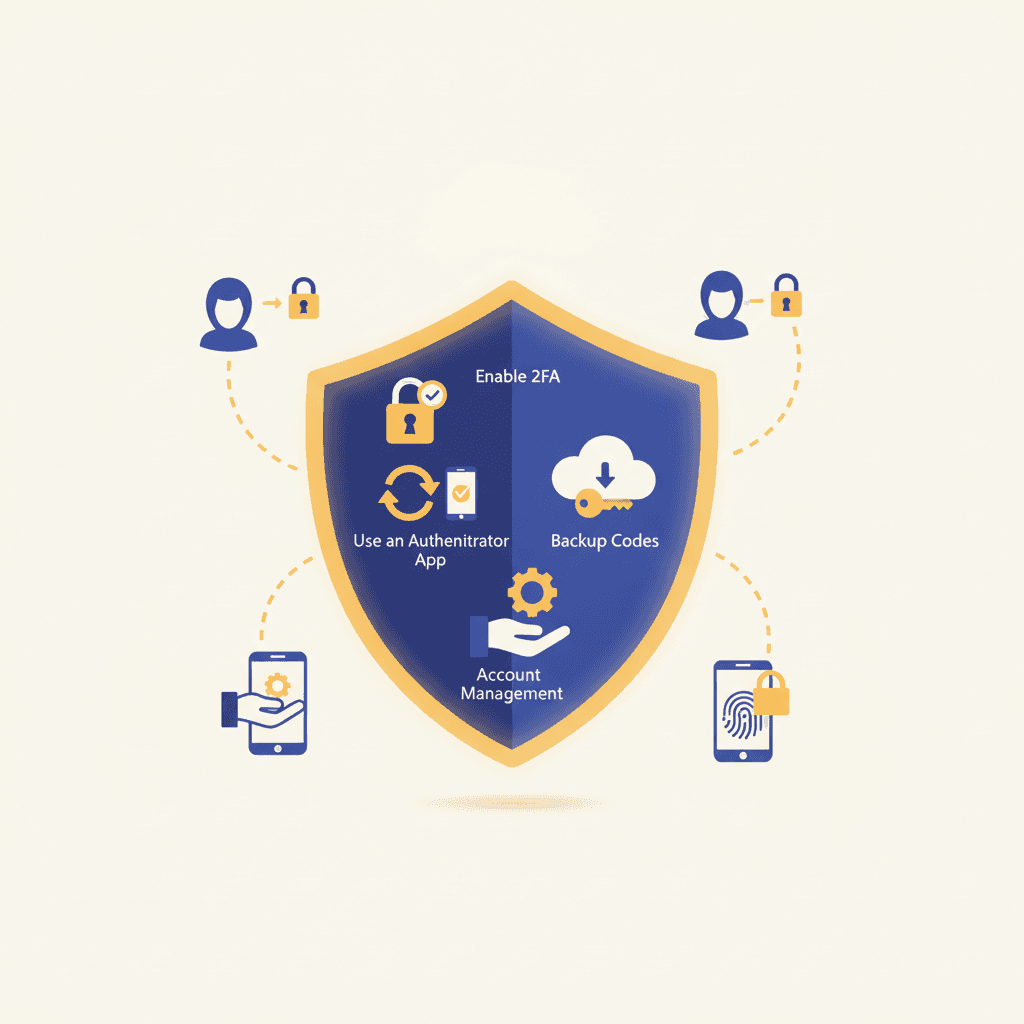
Managing two-factor authentication effectively means balancing security with accessibility. While disabling 2FA may be necessary in certain situations, understanding how to maintain and optimize your authentication settings ensures your Discord account remains protected without unnecessary friction.
Use Passkeys for Enhanced Security
Passkeys represent a modern alternative to traditional authenticator apps and SMS codes. Discord supports up to 16 Passkeys per account, allowing you to register multiple devices for flexible access. Passkeys work seamlessly with password managers, providing both convenience and robust security. If you choose to keep 2FA enabled, consider adding at least one Passkey alongside your authenticator app to create redundancy in your authentication methods.
Enable SMS Backup Authentication
Losing access to your primary authenticator app can lock you out of your Discord account entirely. Enabling SMS Backup Authentication creates a safety net by allowing you to receive verification codes via text message if your authenticator becomes unavailable. This backup method ensures continued access to your account even when your primary 2FA device is lost, damaged, or temporarily inaccessible.
To enable SMS backup, navigate to User Settings, select the My Account tab, and look for the SMS Backup Authentication option under your existing 2FA settings. Link a phone number you reliably control and can access from multiple locations.
A backup authentication method is the difference between temporary inconvenience and permanent account lockout.
Store Backup Codes Securely
When you first enable 2FA on Discord, the platform generates a set of backup codes. These one-time-use codes bypass your authenticator app and should be stored in a secure location separate from your devices—such as a password manager or encrypted note. Never store backup codes in plain text files on your computer or in unencrypted cloud storage.
If you've misplaced your original backup codes, you can regenerate them through your account security settings. Each regeneration invalidates the previous set, so update your secure storage immediately after creating new codes.
Review Your Security Settings Regularly
Account security isn't a one-time configuration. Schedule periodic reviews of your Discord security settings—quarterly or whenever you change devices—to ensure your authentication methods remain current and functional. Remove Passkeys or backup methods tied to devices you no longer own, and verify that your registered phone number and email address are still accurate.
Regular audits also help you identify unfamiliar login sessions or devices that may indicate unauthorized access. Just as you might review and cancel subscriptions that no longer serve you, maintaining clean security settings prevents future complications.
Conclusion
Managing Discord 2FA settings gives you control over your account's security posture. While disabling two-factor authentication is straightforward—requiring only your password and an active backup code—it's a decision that should be made deliberately. The steps outlined in this guide walk you through the process safely, ensuring you maintain access throughout the transition.
Two-factor authentication remains one of the most effective defenses against unauthorized access. If you're disabling 2FA to switch methods, consider re-enabling it immediately with your preferred authenticator app or passkey. If you're removing it entirely due to access issues, document your backup codes in a secure location before making any changes. The few seconds required to retrieve a second factor during login can prevent hours of account recovery work later.
Account security extends beyond authentication methods. Regular password updates, monitoring active sessions, and reviewing connected applications all contribute to a robust security framework. For guidance on managing other recurring account commitments and digital subscriptions, see our Subscription Audit: Cancel Subscriptions That Save You $1,800 a Year resource.
Whether you're adjusting your security settings temporarily or permanently, the key is intentionality. Discord's 2FA system is designed to protect your account while remaining flexible enough to accommodate legitimate access needs. Make changes when you have secure access to all required credentials, and always prioritize account security over convenience.
Learn how to turn off multi-factor authentication on Discord with our step-by-step guide.
Table of Contents
- Introduction — To introduce readers to the topic of Discord 2FA management and the process of disabling two-factor authentication.
- Problem Statement — To explain why users may need to disable 2FA on Discord and the challenges they might face with it.
- Solution Steps for Disabling 2FA on Discord — To provide a detailed, step-by-step guide on how to disable two-factor authentication on Discord.
- Tips and Tricks for Managing Discord 2FA — To offer additional advice for managing 2FA settings and keeping accounts secure while using Discord.
- Conclusion — To summarize the key points discussed in the article and encourage safe account management practices.
- Table of Contents