Introduction
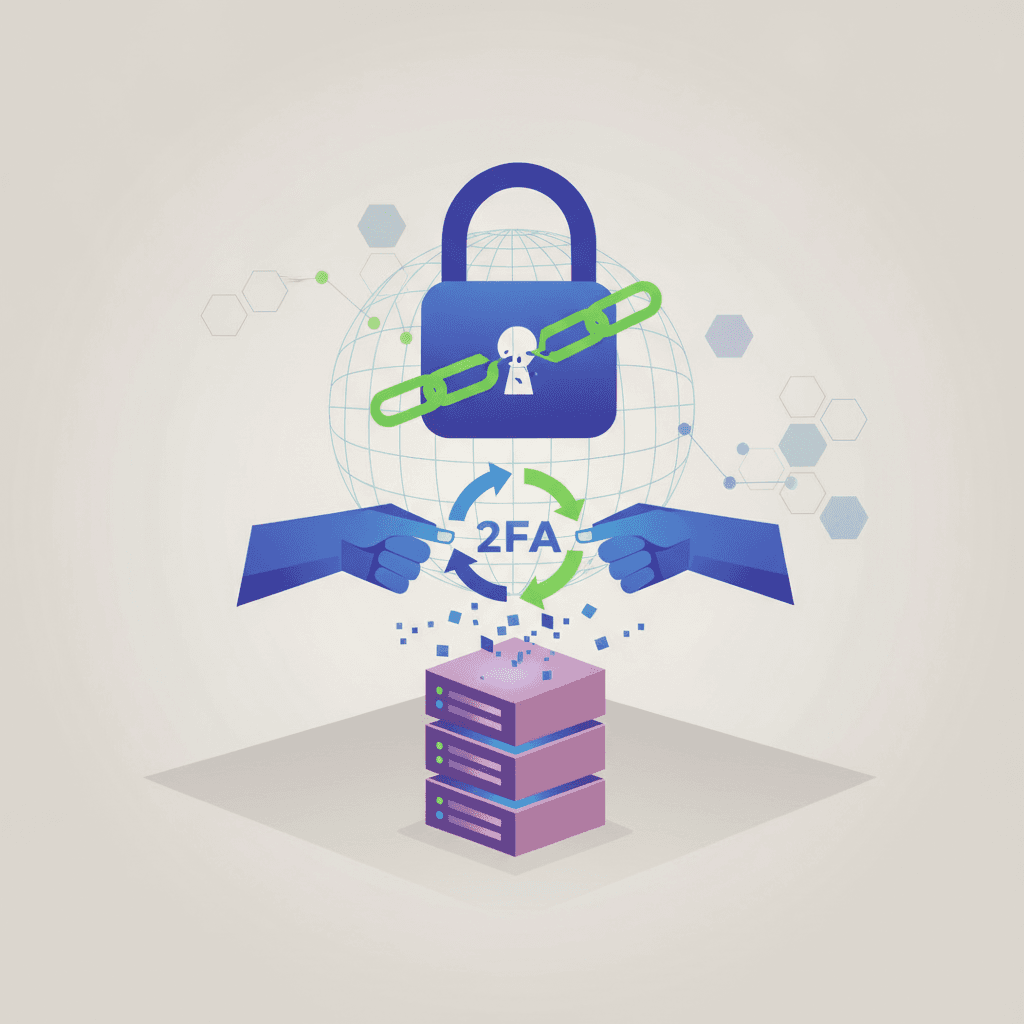
If you need to disable multi-factor authentication discord servers require, understanding the process and security implications is essential. Discord's Multi-Factor Authentication system protects your server from unauthorized access by requiring both a password and a time-sensitive code from an authenticator app. For server owners and administrators, MFA serves as the first line of defense against account takeovers, unauthorized moderation actions, and malicious changes to server configuration. When enabled at the server level, MFA requirements apply to any moderator or administrator performing sensitive actions like banning members, managing roles, or changing server settings.
Yet there are legitimate scenarios where you need to disable multi-factor authentication discord servers temporarily or permanently. You might be troubleshooting authentication issues for moderators who've lost access to their authenticator devices, accommodating team members with accessibility needs, or restructuring your server's security model. Much like learning how to automate savings without thinking about it streamlines your financial processes, understanding Discord's MFA controls streamlines your server management while keeping security considerations front and center.
The process itself is straightforward once you understand Discord's permission hierarchy and where the controls live in your server settings. This guide walks you through the exact steps to disable MFA requirements, explains the security trade-offs you're making, and provides practical strategies for managing authentication in ways that protect your community without creating unnecessary friction. Whether you're dealing with an immediate access crisis or planning a deliberate change to your server's security posture, you'll have the knowledge to make informed decisions about when and how to adjust your MFA settings.
Why Do Users Need to Disable Multi-Factor Authentication Discord?
Disabling multi-factor authentication on Discord may seem straightforward, but server administrators and account owners frequently encounter obstacles that turn a simple security adjustment into a frustrating roadblock. Understanding these challenges helps you prepare for the process and avoid common pitfalls that can lock you out of your account entirely.
Common Challenges When Disabling MFA
The most significant barrier users face is lost access to authentication devices. If you've switched phones, uninstalled your authenticator app, or simply can't locate the device where your two-factor codes are generated, you're immediately blocked from making any security changes to your Discord account. Unlike password resets, which can be handled through email verification, MFA removal requires active proof that you control the authentication method—creating a catch-22 when that method is unavailable.
Another frequent issue involves missing or inaccessible backup codes. Discord generates one-time recovery codes when you first enable MFA, but many users skip saving these codes or store them in locations they later can't access. Without backup codes and without your authentication device, Discord's security architecture offers no alternative recovery path.
Server Management Complications
For server administrators, the stakes are higher. Many Discord servers enforce MFA requirements for users with elevated permissions, meaning you can't simply disable your personal MFA without first adjusting server-level security policies. This creates a dependency chain: you must have administrative access to modify server settings, but you need MFA to maintain that administrative access in the first place.
The timing of MFA changes also matters. If you're managing multiple servers or coordinating with other administrators, disabling MFA on your account can temporarily reduce your permission level on servers with strict security requirements. This can disrupt moderation workflows and leave servers vulnerable during the transition period.
The cheapest security mistake is the one you catch before it locks you out permanently.
Account Recovery Dead Ends
Unlike financial platforms or enterprise software, Discord's support infrastructure cannot bypass MFA protections even when you can prove account ownership through email, payment history, or other verification methods. This design choice prioritizes security over convenience, but it means that preparation—specifically, securing your backup codes before you need them—is the only reliable safeguard.
Users who discover they're locked out often turn to support channels hoping for manual intervention, only to learn that Discord's official guidance recommends checking for active sessions on other devices as the primary recovery method. If you're not logged in anywhere else, your options narrow to using backup codes or starting over with a new account.
These challenges underscore why MFA management requires the same careful planning as any other critical security control. The next section walks through the exact steps to disable multi-factor authentication discord when you do have the necessary access, ensuring you avoid these pitfalls and maintain control of your Discord presence.
How to Disable Multi-Factor Authentication Discord Servers Require
Disabling two-factor authentication on Discord requires access to either your authenticator app or your backup codes. The process is straightforward once you have the necessary credentials, but it's essential to follow each step carefully to avoid locking yourself out of your account.
Prerequisites Before You Begin
Before you start the process to disable multi-factor authentication discord settings, ensure you have one of the following:
- Your authenticator app (such as Authy or Google Authenticator) generating 6-digit codes
- At least one unused 8-digit backup code from your Discord account
- Active access to your Discord account on at least one device
Step-by-Step Process to Disable MFA
Alternative Method Using Backup Codes
If you've lost access to your primary authentication device but remain logged in on another device, you can still disable multi-factor authentication discord using backup codes. Navigate to User Settings, then "My Account," and select "View Backup Codes." Use one of your 8-digit codes to verify your identity and proceed with disabling two-factor authentication.
What Happens After Disabling MFA
Once you disable two-factor authentication, your Discord account security returns to password-only protection. You'll no longer need to enter codes when logging in from new devices, but your account becomes more vulnerable to unauthorized access if your password is compromised.
For users managing server security, understanding how to dispute credit report errors can provide insight into systematic verification processes that parallel the careful approach needed for account security management.
If you're a server owner or moderator, disabling your personal MFA doesn't affect server-level MFA requirements. Server security settings operate independently from individual account settings and must be adjusted separately through Server Settings.
Tips and Tricks for Managing MFA on Discord
Managing Multi-Factor Authentication on Discord requires balancing security with practical accessibility. Whether you're a server owner maintaining moderation standards or an individual user protecting your account, understanding how to handle MFA settings effectively prevents lockouts while preserving the security benefits this feature provides.
Save Your Backup Codes Immediately
The moment you enable MFA on Discord, the platform generates a set of backup codes. These one-time-use codes are your failsafe when you lose access to your authentication device. Store them in multiple secure locations—a password manager, an encrypted note on your computer, or a physical document in a safe place. Never screenshot them and leave them in an unsecured photo library.
If you suspect you may have saved backup codes on your computer previously, search for a file named discord_backup_codes.txt. This is the default filename Discord uses when you download your codes, and it may still be in your Downloads folder or Documents directory.
Check Active Sessions Before Disabling MFA
Before you disable multi-factor authentication discord settings, verify which devices currently have active Discord sessions. Navigate to User Settings > Devices and review the list. If you see unfamiliar devices or locations, log them out immediately. Disabling MFA while unknown sessions are active creates a window where unauthorized users could maintain access even after you've changed your password.
For server owners, communicate any changes to MFA requirements well in advance. Moderators and administrators who rely on mobile authentication apps need time to adjust their login workflows, especially if they manage multiple servers with different security policies.
Maintain Access to Your Authentication Method
If you use an authenticator app like Google Authenticator or Authy, ensure you understand how that app handles device transfers. Some apps store codes locally and don't sync across devices; losing your phone means losing access unless you have backup codes. Others offer cloud backup with account recovery options. Know which type you're using before you need it.
Coordinate MFA Policy with Server Management Tools
Server owners who disable the MFA requirement for moderation actions should evaluate whether other security measures adequately protect the community. Consider implementing role-based permissions that limit destructive actions to a smaller group of trusted administrators who maintain MFA on their personal accounts. Audit logs become even more critical when MFA requirements are relaxed, as they provide the only trail for tracking who performed sensitive actions.
For those managing personal finances and security across multiple platforms, the same principles that protect your emergency fund and savings accounts apply to digital community management—layered security with documented recovery procedures prevents both financial and administrative crises.
Conclusion
Understanding how to disable multi-factor authentication discord servers require is essential for server administrators who need to balance security with operational flexibility. While MFA provides a critical layer of protection against unauthorized access and account takeovers, there are legitimate scenarios where temporarily disabling it becomes necessary—whether for troubleshooting access issues, accommodating team members with technical limitations, or managing server transitions.
The key to responsible MFA management lies in treating it as a temporary adjustment rather than a permanent state. Every moment your server operates without MFA increases exposure to potential security risks, from compromised moderator accounts to unauthorized administrative actions. By following the step-by-step process outlined in this guide and implementing the best practices for re-enabling protection quickly, you can minimize vulnerability windows while addressing immediate operational needs.
As Discord continues to evolve its security features and server management tools, staying informed about MFA requirements and alternatives will help you make decisions that protect your community without sacrificing accessibility. Document your security protocols, communicate changes clearly to your moderation team, and always prioritize the long-term safety of your server and its members. The few extra minutes spent managing MFA settings properly today can prevent hours of recovery work tomorrow.
Table of Contents
- Introduction — Introduce the topic and explain the importance of Multi-Factor Authentication (MFA) on Discord servers.
- Why Do Users Need to Disable Multi-Factor Authentication Discord? — Discuss the challenges users face when needing to disable MFA on their Discord servers, including accessibility issues and user management complexities.
- How to Disable Multi-Factor Authentication Discord Servers Require — Provide a clear, step-by-step guide on how to disable MFA on Discord servers.
- Tips and Tricks for Managing MFA on Discord — Share practical tips for managing MFA settings effectively and ensuring server security while maintaining accessibility.
- Conclusion — Summarize the importance of understanding MFA settings on Discord and encourage responsible management of security features.
- Table of Contents